
How To: Create GitHub Page
Go to GitHub
https://github.com
Create a new repository by pressing the green “New” button on the top left of the screen
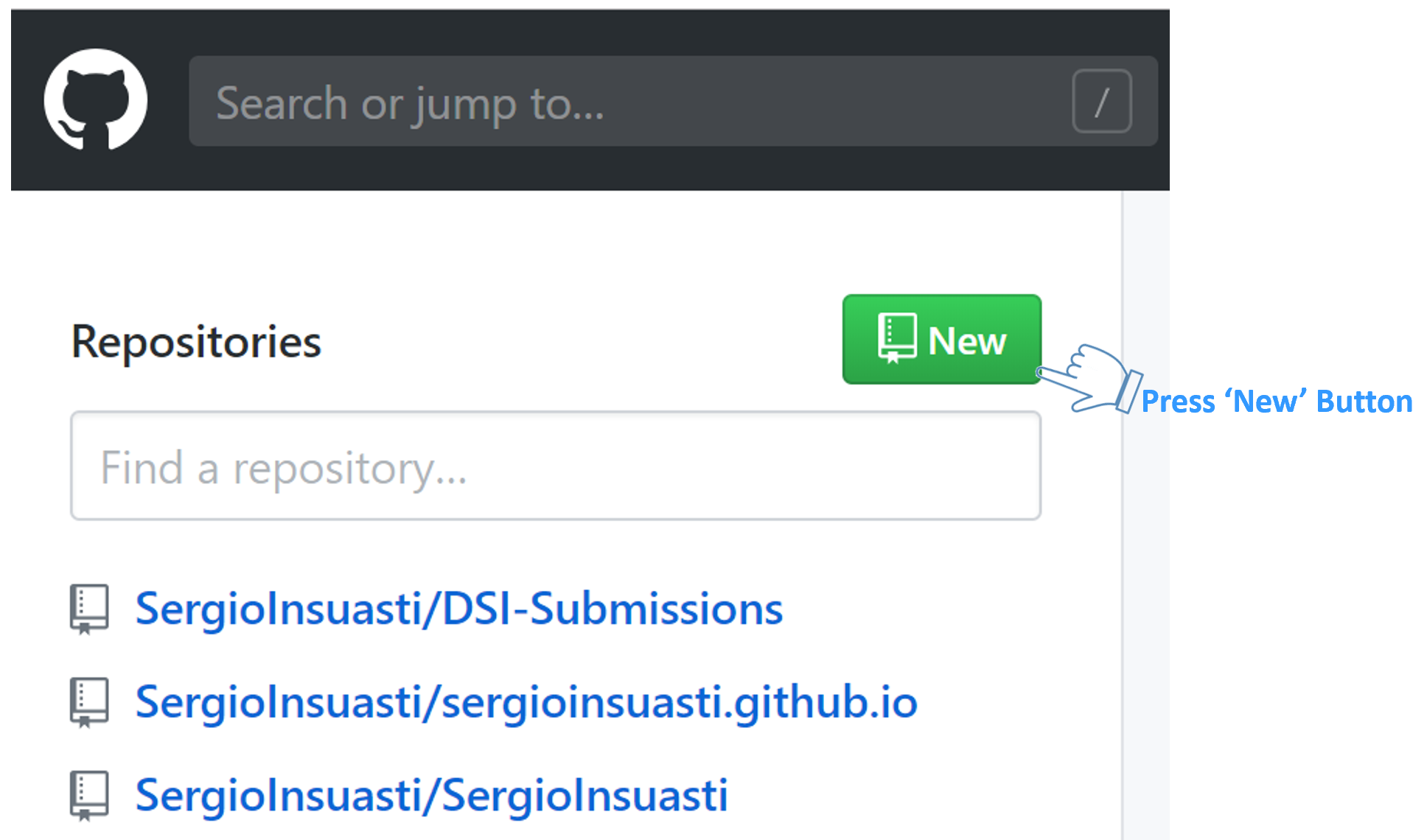
This will create a new repository named username.github.io where username will be your GitHub name or GitHub organization name.
Note:- If the first part of the repository doesn’t exactly match your username, it won’t work, so make sure to get it does.
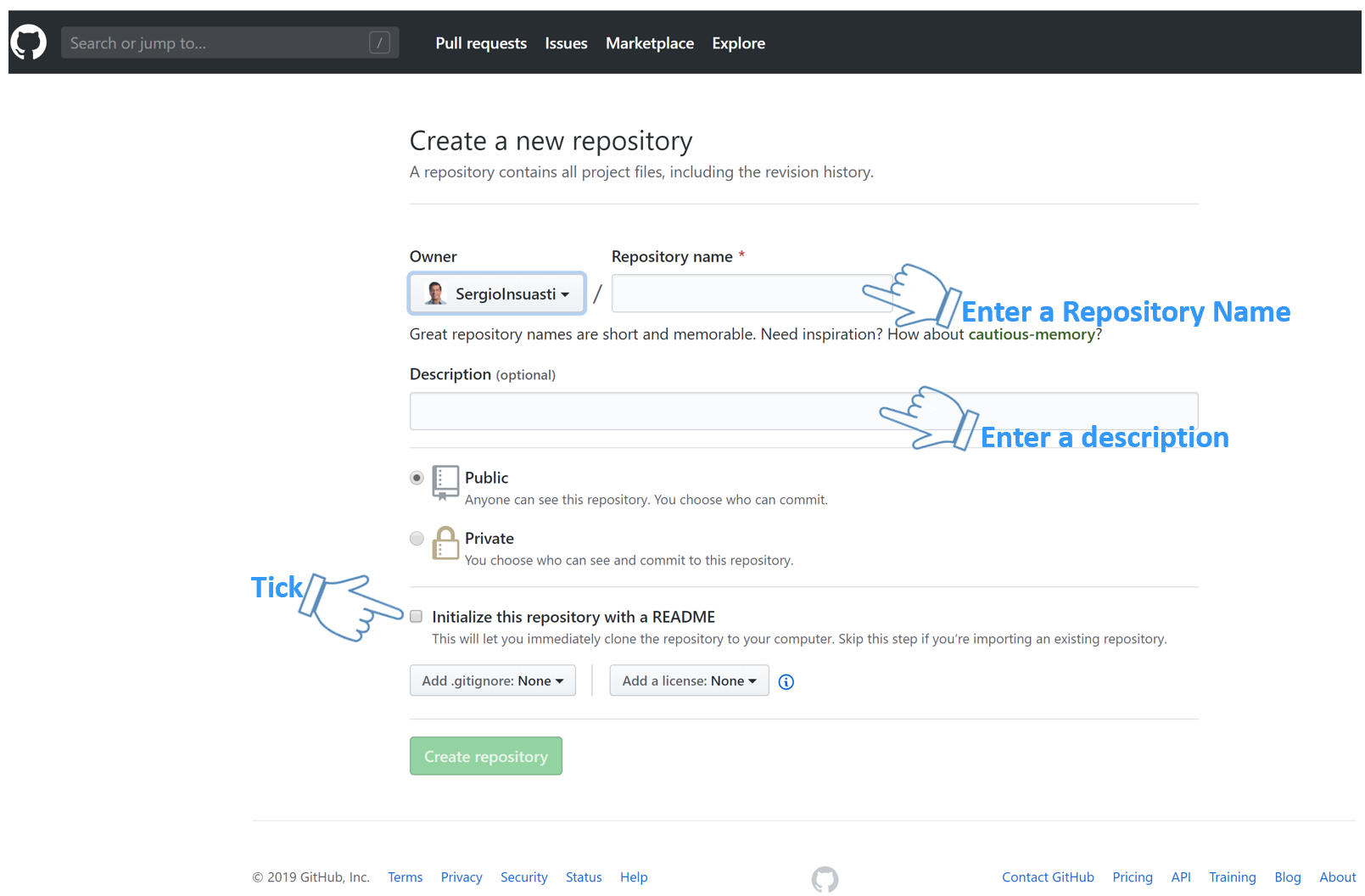
Enter
- 1 New Repository name
- 2 Enter a Description (optional)
- 3 Tick the ‘Initialize this repository with a README’
- 4 Press ‘Create repository’
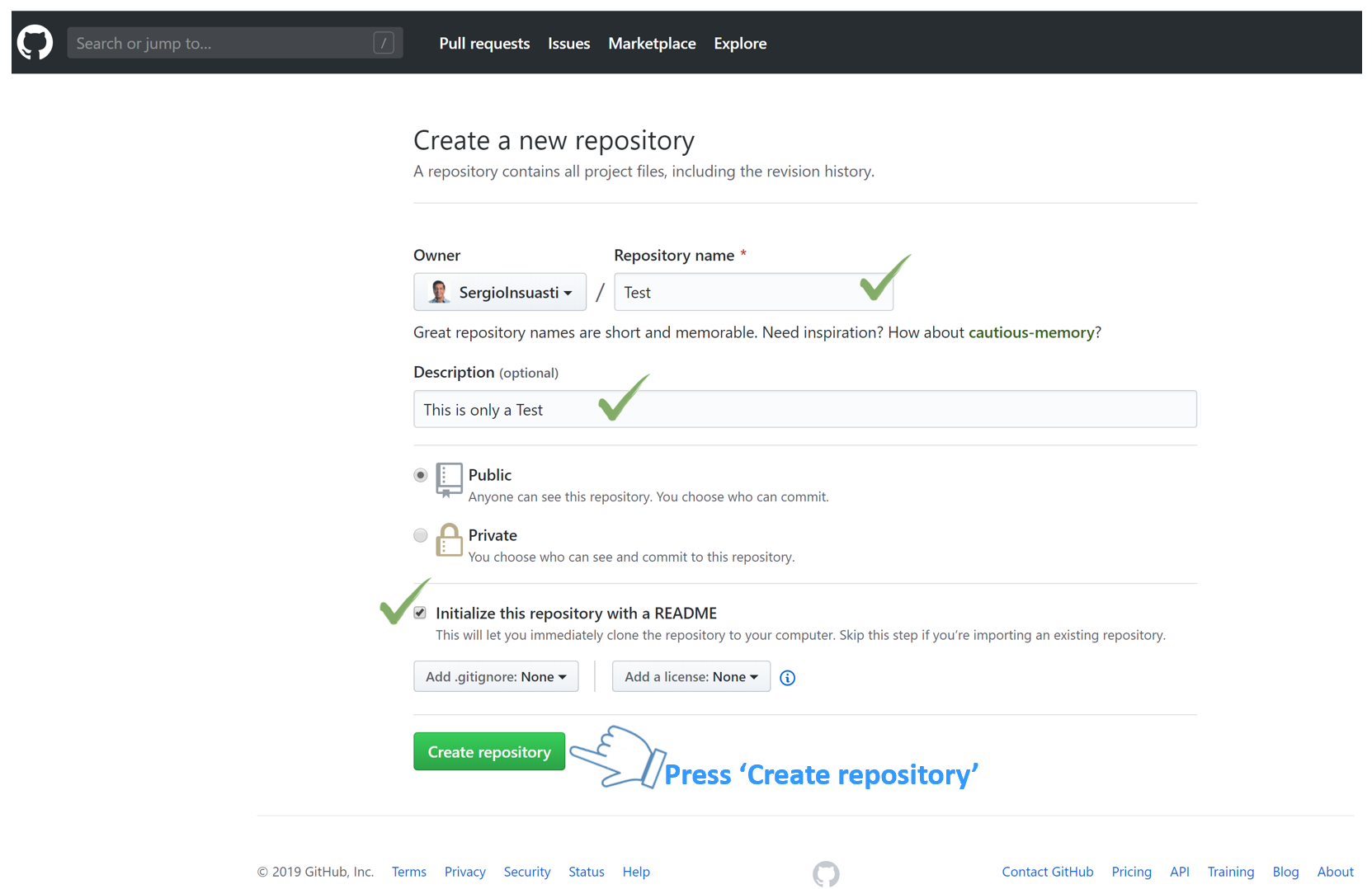
Once you pressed ‘Create a repository’ it will take you to created GitHub page.
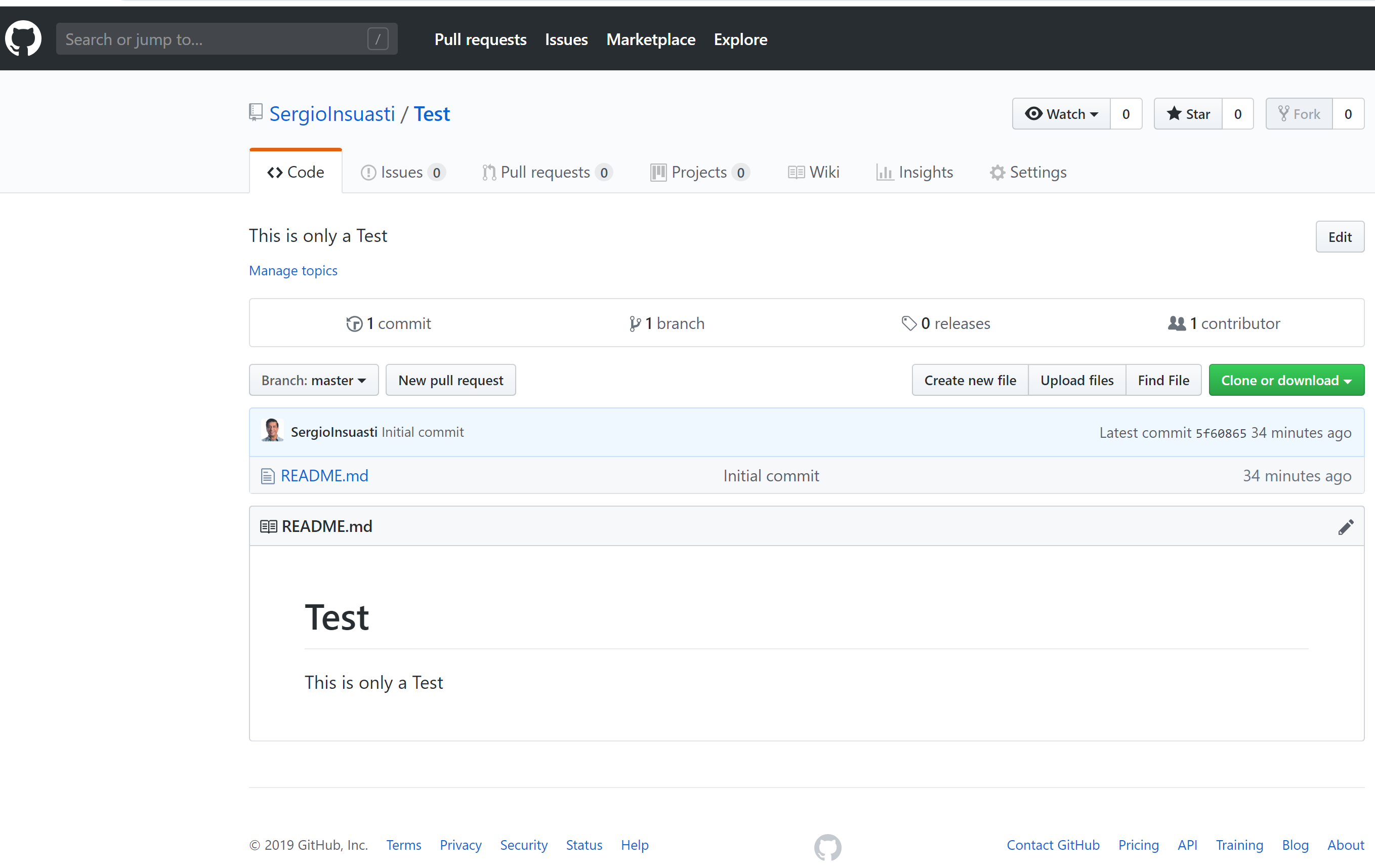
Next Go to GitHub so you can see all your repositories
https://github.com
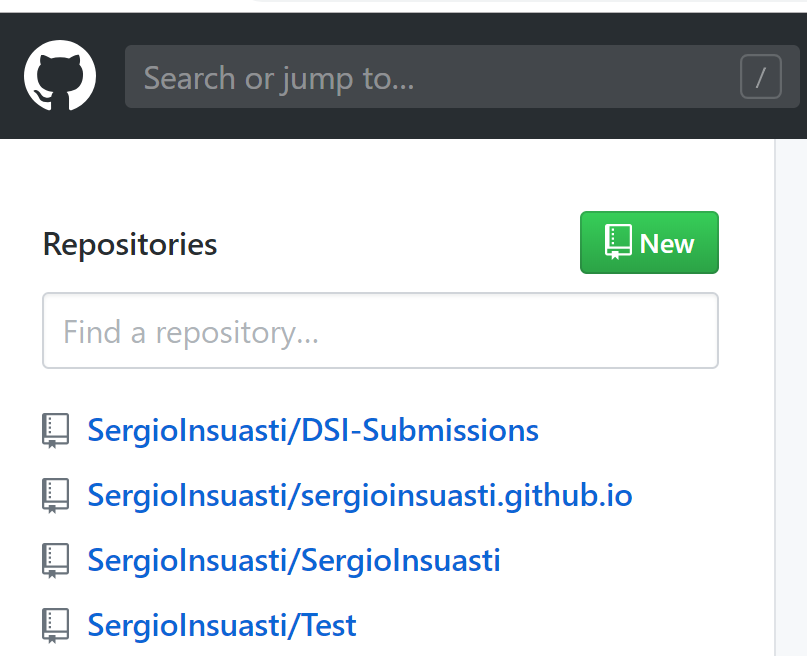
Select created repository.
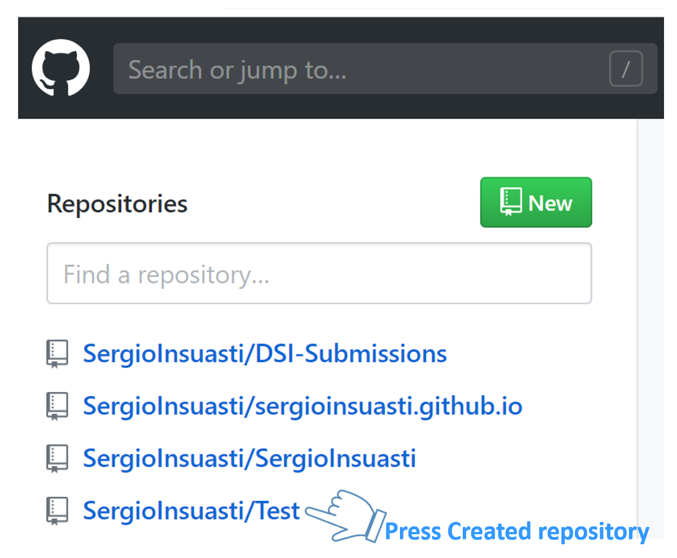 This is your repository home page. Select your created repository.
Now we need to clone the Repository
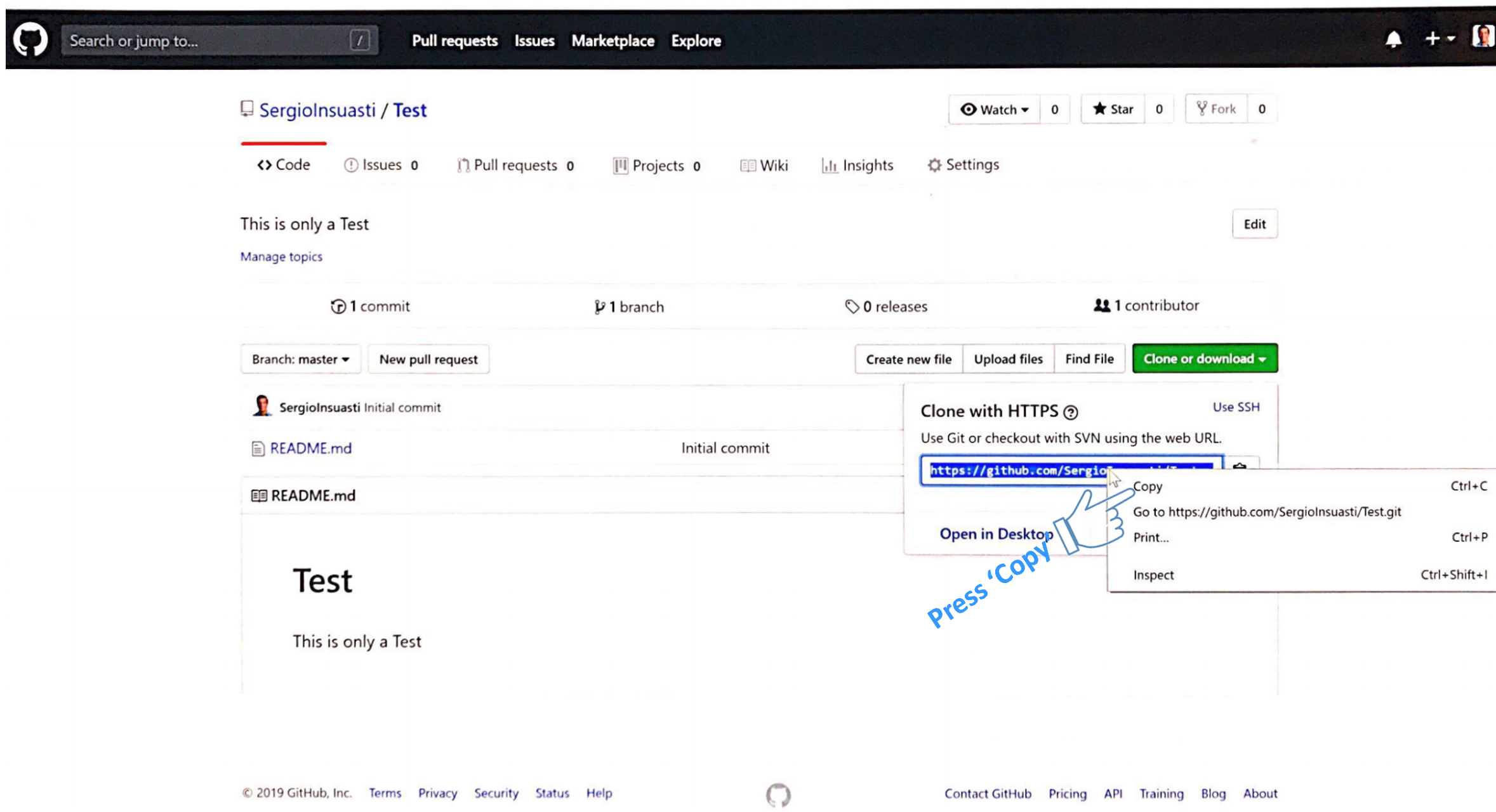
Copy the link of repository to clone by pressing ‘Clone’ Right click and copy the link.
Open GitBash. Clone your repository. It’ll create a folder with your repository name.
git clone https://github.com/SergioInsuasti/Test.gitCreate a html file.
git add -allgit commit -m 'Commit first time'git pushYou have your own site Created.